Ep. 20 – Using ChatGPT for Your Sales Pages
|
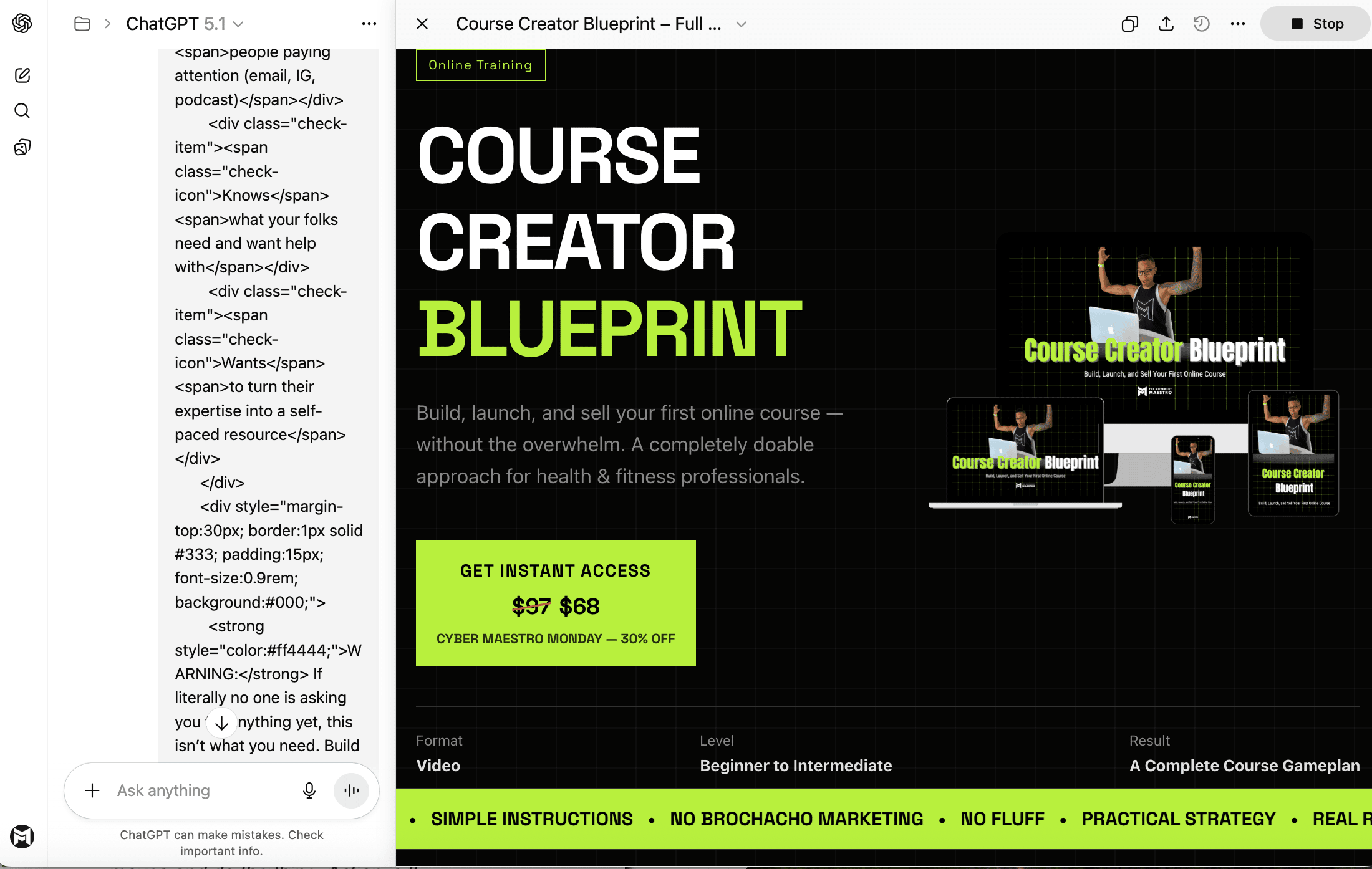
In this episode I break down how ChatGPT can support the process of writing and designing your sales pages. The conversation covers how Canvas works, how to feed ChatGPT the right input, and how to generate both the copy and a fully rendered mockup of your page. This episode clarifies what ChatGPT can actually do, what it can’t, and why it’s still an incredibly helpful tool for creating clear, effective sales pages. A Moment for Episode 20Before we jump in, puhlease allow me to take a moment and celebrate hitting 20 episodes; mainly because I’m very much the type of person who expects myself to get to 20 episodes (my other podcast, Maestro on the Mic, just hit episode 691) but I stay preaching about the value of clapping for yourself, so imma clap for myself. This podcast is and was definitely a labor of love, born out of something that just had to get out of my head, and here we are. Where it’ll go, I have no idea, but we’re going to keep on keeping on and I’m grateful that you’re along for the ride. Where Today’s Topic Came FromToday we’re talking about using ChatGPT for your sales page, and this topic kind of came about by accident, a happy accident as Bob Ross would say. Google released Gemini 3 two weeks ago on November 18th, and it got A LOT of buzz. A good friend of mine, Khe Hy, has an AI newsletter that I subscribe to, and he did a review of Gemini 3 that made me want to try it out… so, in true Maestro fashion, first I watched a YouTube video about it. Y’all know I’m interested in the overall AI landscape and so it wasn’t just about trying it out, I wanted to hear what folks in the field were saying about it because it’s actually a pretty big deal that Google appears to have caught up to the big names (ChatGPT and Claude) with the release of Gemini 3. More on that in another episode… maybe. But the folks in the YouTube video said good things, I really enjoyed the folks from Google who they interviewed (Sam Altman is so fucking weird), so I decided I’d give Gemini a try. How Gemini Made a WebsiteIn Khe’s newsletter he wrote about how Gemini cooked up a website for him, and he included screenshots of it. I was like…wut?!? So I decided to try it for myself, namely because I’d been working on Cyber Monday stuff, which included some new sales pages. Worth noting, initially I didn’t use Gemini to make the sales page, I asked it to explain to me how Khe had got it to build him that website. After some trial and error I learned that it was using a workspace inside of Gemini called Canvas. Surprise: ChatGPT has Canvas too! I’ve used Canvas plenty of times before but mainly as a way to make copying things easier. I even have a shortcut prompt for it — “canvasify this” — when I want ChatGPT to put text into Canvas so that it’s easier for me to copy and paste elsewhere; clearly I wasn’t aware of its full functionality. What Canvas Actually IsCanvas is ChatGPT’s workspace for anything that benefits from being displayed visually. Translation: it’s a place where it can actually show you the thing it creates instead of just describing it. It’s a workspace inside ChatGPT that shows up when you ask it to create something visual or structured, like a landing page, a document, a newsletter, or a layout. Instead of just giving you code or text, ChatGPT opens this side-by-side editing area — Canvas — and renders the page or document right there so you can preview it, adjust it, and copy it into your website or editor. Key points about Canvas:
When Canvas is available, a small dog-eared piece of paper icon appears in the top right of the screen. Click it and it opens the Canvas.
If the Canvas contains something that can be rendered, there will be a black button at the top right that says preview. Click that and, voila, the fully rendered page appears.
Render just means ChatGPT turns the code into something you can actually see, like a real page. Honestly, it feels like magic, NGL.
Using ChatGPT for Your Sales PagesBefore I turn this into an entire episode on Canvas (gonna save that for a future episode for sure once I play around more), let’s chat about how to use it for your sales pages. First off, as always, the better the input, the better the output. Y’all already know that typing “make a sales page for me” is likely going to generate trash. To create the copy for the sales page, ChatGPT can absolutely help you — but again, the better the input, the better the output. Step 1: Create the CopyYou can create the copy for your sales page yourself, or have ChatGPT help you. Create an Offer Outline (The 7Ps) If I put my business coach hat on, in order to create the copy for your sales page I’d instruct you to first write out what I call the 7Ps of an offer, and create your copy from that:
Orrrrrrrrr… Have ChatGPT Create the Copy: Upload the Content From Your Offer Personal fave: Take the slides from the presentation and pull all of the copy from every slide by opening the outline view → copy all and paste it into ChatGPT. You could do the same with a transcript, or any other text that you have that comes directly from the offer. Prompt-wise, it can be as simple as: “I’m going to paste the outline from the slides that I used for an online course called X. I’d like you to generate the exact copy for the sales page. Keep it short and tight and in my voice. No bro marketing or any shit I don’t like. The price is $97.” The more you use ChatGPT the better it knows you, and thus the better the copy will be because it will sound like you. Be sure to tell Chat exactly what you want: Use my voice, keep it simple, none of that brochacho marketer bullshit, etc. Then of course edit it to make sure it 100% sounds like you. Step 2: Have ChatGPT Render the Actual PageIn the previous step we had ChatGPT helping us out with the copy for the sales page, and that IMO is a big win and a significant time-saver. Next comes the actual sales page. For this step you’ll take the copy you just generated and paste it into ChatGPT along with the prompt: “Please use this copy to create a fully rendered sales page in Canvas.” ChatGPT cannot make you a live sales page on your website, but it can generate the code and fully render one for you, and depending on your tech proficiency you can copy that code and use it to create the page on your own site. A low-tech alternative to this would be simply having ChatGPT serve as a visual mock-up, and then recreate the page manually on your site. Be sure to include any style preferences: Brand colors, fonts, specific sections to include. That’s literally it*. Pretty fucking cool if you ask me. *Expect to have quite a bit of back and forth with ChatGPT. The cool part is that you don’t need to know how to code, you simply need to ask for what you want. Getting The Page on Your Actual WebsiteHow you get the ChatGPT-generated page onto your actual site is a whole different beast. (FWIW, depending on your setup, it can be as simple as copying all of the code and simply pasting it into a custom HTML block.) My suggestion is that you ask ChatGPT for help with this step. It’s most helpful if from the get-go you let ChatGPT know what type of site you have (Squarespace, Kajabi, WordPress) so that it can generate the appropriate type of code for you. I realize some of you are shaking your head right now, saying, “Immediately fuckign no”, so for now perhaps you just use ChatGPT to create the sales page copy. Still a huge win. For those of you feeling more adventurous, the experimenting can prove to be quite fruitful. I made this page, starting with just the copy from the slides, in under an hour. I’m certain I’ll only get faster. What I hope this highlights though is that, no, ChatGPT is not just building a live page for you that is set-up on your site people can immediately interact with. I’d really love it if folks used this example to understand that AI isn’t replacing people the way the fear mongerers and tech zealots — read: folks who stand to make a lot of money from simply selling the idea of AI success — would have people believe. AI is great for conceptualizing things. If you want stuff that is fully functional, you need people who know what they’re doing (or a whole lotta tech tenacity). I will definitely continue to play around with it and I’ll be sure to share whatever I find out and figure out. How I Used ChatGPT This WeekEach episode I include a section where I briefly discuss how I used ChatGPT that week. This week clearly I used it to help create a sales page, but I also wanted to share that I used it to help generate the lesson summaries and the final summary slide for my online courses. It’s as simple as copying and pasting the text from the slides and asking ChatGPT to generate what you want. I actually really like this because I don’t need the output to sound like me as much as I want to make sure the main points are conveyed, and ChatGPT is really good at that. HUGE time saver. The Wrap-upI know we got a bit technical in today’s episode, but this shit excites me and I really do see so much potential in it. Big grateful that you continue to indulge me. As always, take what serves you and leaves the rest. Catch you next Thursday. Maestro out. AI Disclaimer: In the spirit of transparency (if only we could get that from these tech companies), this blog post was generated with a very solid alley-oop from ChatGPT. I write super detailed outlines for every podcast episode (proof here), and then use ChatGPT to turn those into succinct, readable recaps that I lightly edit to produce these Curious Companions. Could I “write” it all by hand? Sure. Do I want to? Absolutely not. So instead, I let the robot do the work, so I can focus on the stuff that I actually enjoy doing and you get the content delivered to your digital doorstep, no AirPods required. High fives all around. Stay curious. |